
WINDOWS · LINUX · APPLE MAC
How to transfer a camera site and its saved passwords
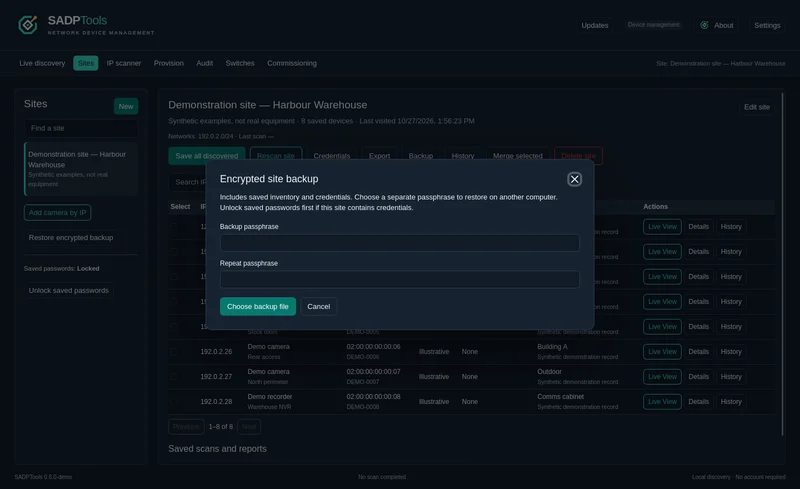
Use Export site to create an encrypted .sadpsite file, then Import site on the destination laptop. The file carries the saved site and known credentials independently of each laptop’s local password protection.
Download SADPTools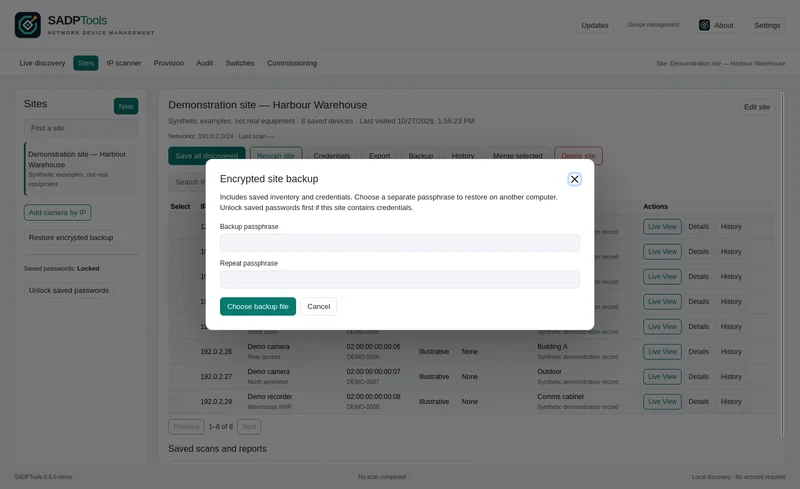
Check what is saved before exporting
The transfer includes camera records, saved usernames and passwords, default/shared credentials and overrides, notes, tags, address reservations, switches and their credentials, history, saved scans and reports, plans, documents and attachments. Known imported stream addresses and NX Witness information travel with the site when present.
Unknown passwords remain unknown. Credentials used for a one-session login but never saved to the site are not part of a site export. Check the site's Credentials settings before relying on the file as a complete handover.
On the source laptop
- Open Sites and select the installation. Confirm that the equipment and supporting records belong to the site you intend to transfer.
- Choose Export site. Export report produces an inventory report without passwords; use Export site for the complete portable file.
- Unlock saved credentials if prompted. Windows can use its account protection. A passphrase-based vault requires its local saved-password passphrase.
- Set a site file password of at least 12 characters. This protects the exported file and is separate from camera passwords and each laptop's vault passphrase.
- Save the .sadpsite file. Transfer it through your chosen approved method, and provide the file password separately to the authorised recipient.
On the destination laptop
- Install a current compatible SADPTools version. Use v1.0.1 or newer for sites containing NX Witness server, user, storage and licence information.
- Choose Sites → Import site. Enter the site file password, choose the .sadpsite file and review the import summary.
- Check the proposed name and counts. Review camera, credential, attachment and NX inventory counts where supplied.
- Select Import as new site. Create or unlock the destination's local saved-password protection if requested. The importer re-encrypts secrets for this laptop.
- Review the imported site. Open Edit site and choose the destination laptop's local network adapter before rescanning. Adapter bindings from the source laptop are cleared; saved network ranges remain.
Import creates a separate site and preserves existing sites, even if they share a name. It does not connect to cameras, reset passwords or write network settings. Confirm the transferred inventory on the destination before relying on it as your only copy.
Importing an NX Camera Info JSON export
Export the required cameras as JSON from NX Camera Info. If known camera passwords should be included, reveal them before exporting. In SADPTools, choose Import site, leave the site file password blank for this JSON format, select the file and review the summary.
A full report can also contain NX Witness system, servers, users, storage and licences. SADPTools stores this information encrypted and exposes a read-only NX Witness button only on sites containing that metadata. Older camera-only imports cannot recover data that was absent or discarded; import the newer full JSON as a new site.
An NX JSON export with revealed passwords is plaintext. Keep the source file private. For later moves, use the encrypted .sadpsite export. Ordinary CSV, JSON or HTML inventory reports are not complete site-transfer files, and importing an inventory does not establish that its cameras are currently reachable.